Whether you are trying to password protect a single document, secure a USB drive, or lock down your entire hard drive, encrypting your data is the only reliable way to prevent access by unauthorized users. This walkthrough explains the best approaches for Windows, Mac, Linux, and Mobile.
What is a practical way to encrypt files and folders? For basic needs, use native tools like Windows BitLocker or Mac FileVault. That said, for file-level granular control, secure sharing, and cloud backup, external encryption software like Folder Lock offers stronger AES-256 protection and a much simpler interface.
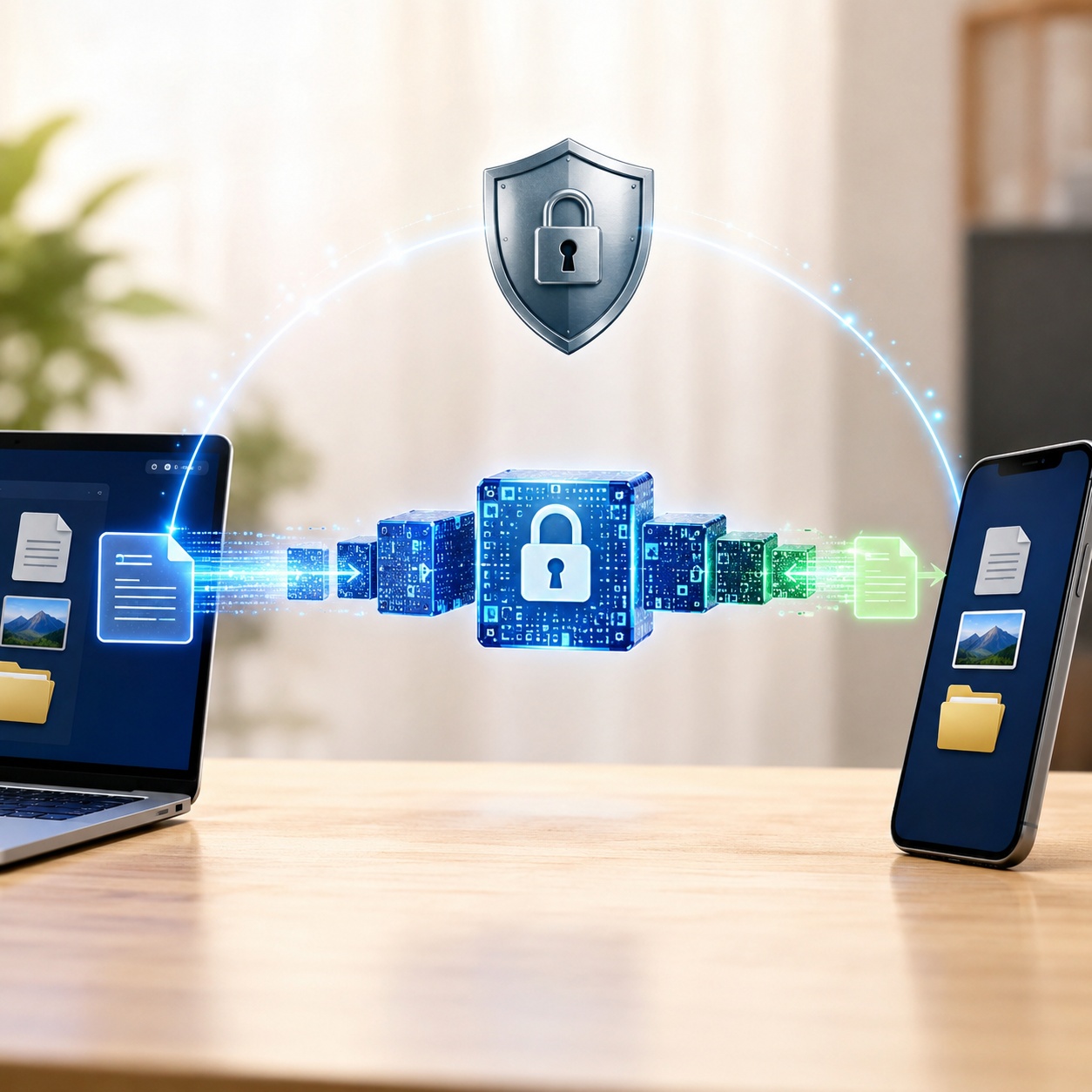
According to recent cybersecurity analyses, over 40% of physical data breaches involve lost or stolen local storage devices (laptops, USBs, hard drives). Unencrypted files on these devices can be read by anyone in seconds simply by plugging the drive into a various computer.

At its core, encryption is a mathematical process that scrambles your readable data (plaintext) into an unreadable format (ciphertext). When you encrypt a document with a password, you are essentially applying a cryptographic lock. Only someone with the correct decryption key—usually a password, PIN, or biometric scan—can translate that data back into its original form.
Most modern systems, both native and external, utilize AES-256 (Advanced Encryption Standard with a 256-bit key). To understand the difference between AES-128 and AES-256 encryption, consider the key length: AES-256 has 2256 possible combinations. It would take current supercomputers billions of years to crack via brute force.

Every operating system handles data encryption slightly differently. Here is a quick look at full disk encryption support across Windows 11, macOS, and Linux distributions compared to dedicated software.
| Platform | native OS Tool | Best Used For | Software Alternative |
|---|---|---|---|
| Windows 10 / 11 | BitLocker / EFS | Full disk encryption | Folder Lock (Granular files) |
| macOS | FileVault / Disk Utility | System drive security | Mac-selected file vaults |
| Linux (Ubuntu, etc.) | LUKS | Server & OS level | VeraCrypt / Open Source |
| Android / iOS | Hardware-backed native | Device theft protection | Folder Lock Mobile App |

If you are wondering ways to encrypt a file in Windows 11 or Windows 10 without downloading anything, you have two primary native choices: EFS (Encrypting File System) and BitLocker.
Limitation: EFS is tied to your Windows user account. It doesn't ask for a password when you open the file—it relies entirely on your Windows login. If you share the file via email or USB, the encryption doesn't travel with it.
BitLocker offers full disk encryption. It is excellent for securing a whole computer, but it is typically only available on Windows Pro, Enterprise, or Education editions.

Learning how to encrypt a file on a Mac natively is straightforward. Apple offers excellent native tools through Disk Utility and FileVault.
Instead of encrypting a single file, Mac lets you create an encrypted "disk image" (.dmg) from a folder.
The Software Advantage: While the native Mac approach is effective locally, specialized apps tailored for macOS let you generate secure vaults directly within popular cloud networks—such as Google Drive, Dropbox, or OneDrive. This ensures your data remains encrypted locally, securely syncs to the cloud, and can be retrieved on entirely various devices, which native DMG files handle clumsily.
Native tools are great, but they fall short if you need to email encrypted files, secure a portable USB drive cross-platform, or lock selected folders with a unique password. For most users, we recommend dedicated data encryption software like Folder Lock.


Quality software offers holistic data protection that extends far beyond simply scrambling a file. When relying on dedicated tools, you should leverage several extra layers of privacy.

When you transfer data via a thumb drive, standard operating system locks usually fail if you plug that drive into an unfamiliar computer. Advanced tools create self-contained executable lockers directly on the flash drive, meaning you can access your encrypted files on any Windows or Mac computer simply by entering your password, without installing the host software.

Encrypting a file is only half the battle. If the original, readable version of the file remains in your system's recycle bin or temporary folders, your data is still exposed. Look for tools that instantly overwrite the original data (file shredding) once the encrypted vault is created. Additionally, capable software can sweep your operating system to clear activity trails and recent history logs.

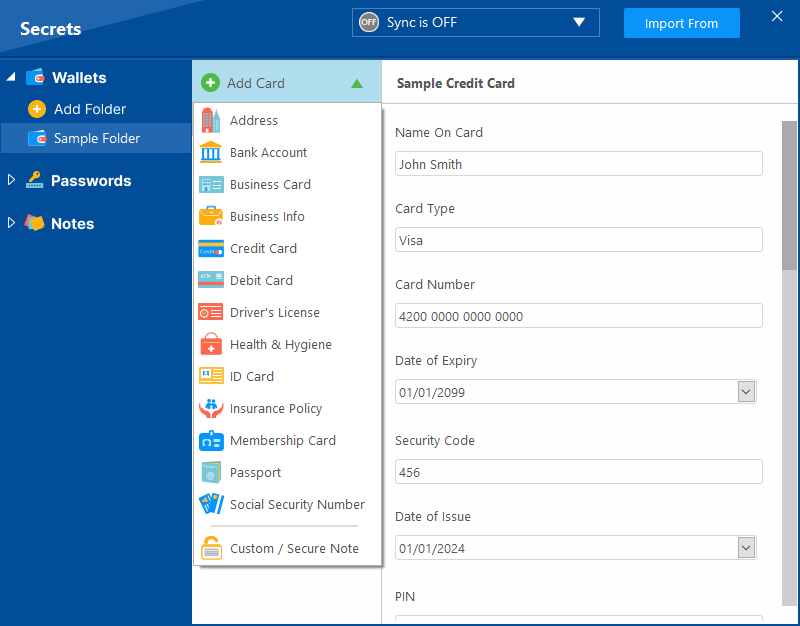
Not all sensitive data comes in a `.docx` or `.pdf` format. Sometimes you need to protect credit card numbers, software registration keys, or private text notes. Top-tier encryption platforms include secure wallets and isolated text environments to safely store plain text behind AES 256-bit walls.


Mobile operating systems handle encryption very differently from desktop architectures. Modern Android and iOS devices encrypt your entire local storage by default out of the box. That said, that baseline encryption only protects you when the phone is fully turned off or locked with your passcode.
If you hand your unlocked iPhone or Android to a friend, or if someone snatches your phone while the screen is active, that hardware-level encryption does nothing to stop them from browsing your private photos, videos, and documents.
To establish a second layer of defense, you need a dedicated mobile vault application. These tools let you import sensitive media and files into an isolated container protected by an entirely separate PIN, fingerprint, or FaceID check.
Beyond simply hiding files, the best mobile encryption apps introduce powerful utility functions that native systems lack:
Not sure which approach to use? Answer two questions to get our recommendation.
1. What are you trying to protect?
2. Do you need to share these files with others?

If you decide to utilize external software, you will almost always encounter a choice between a free trial version and a premium license. Understanding the limits of free software is critical for long-term data management.
The Free Tier Experience: Free versions are excellent for testing the interface, but they are generally strictly limited in scope. You can typically expect an artificial cap on how much data you can encrypt—often around 1 gigabyte of total locker size. Furthermore, if you want to automatically sync your secure lockers to the cloud across multiple computers and phones, free tiers usually restrict you to a maximum of two devices and lack advanced secure-sharing permissions.
The Premium Upgrade: Upgrading to a full version—which generally costs around forty dollars for a permanent lifetime license—removes all training wheels. Premium unlocks unlimited locker sizes bounded only by your hard drive capacity. It typically expands your cross-platform cloud syncing capabilities to five devices simultaneously and lets you securely share access with an unlimited number of secondary users. For anyone intending to protect extensive media libraries, financial records, or client data, stepping up to the paid tier is effectively mandatory.
Here is a breakdown of full disk encryption vs. file-level software to help you decide.

| approach | Security Level | Portability | Best For |
|---|---|---|---|
| Windows EFS | Moderate | Poor | Basic local user privacy |
| BitLocker / FileVault | High (AES) | OS Locked | Hardware theft protection |
| Mac Disk Image (.dmg) | High | Mac Only | Sending secure files to Mac users |
| Folder Lock Software | Military-Grade | Excellent (Cross-Platform) | USB encryption, precise folder locking |
This is the biggest risk of true encryption. If you use BitLocker without backing up your recovery key, or use AES-256 software like Folder Lock and lose the master password, your data is gone permanently. Real encryption does not have a "backdoor." Always manage keys securely using a password manager.
Some software encrypts the file contents but leaves the file name visible. If you name a file "Secret_Merger_Plans.pdf", the contents are safe, but the metadata leaks context. Look for tools that encrypt file names and directory structures as well.
Modern CPUs have hardware acceleration (AES-NI) that makes encryption nearly instantaneous. When looking at encryption performance benchmarks (SSD vs HDD), you will notice almost zero impact on SSDs. Software encryption creates a tiny overhead when locking/unlocking, but everyday usage remains unaffected.
For IT professionals and power users looking at the data encryption functions comparison for Windows, macOS, and Linux desktop operating systems entering 2025 and 2026, the landscape is standardizing around AES-XTS.
If you are exploring how do agencies migrate content to the cloud securely, or need encryption for regulatory compliance (HIPAA, GDPR, SOC 2), consumer-grade tools may not suffice. Businesses must use software that offers audit logs, centralized key management, and proves data at rest is encrypted via AES-256 before uploading to external servers.
Encrypting your data is no longer an optional security measure; it is a necessity. While native tools like BitLocker and FileVault are excellent for full-disk protection, they lack the flexibility needed to protect individual folders, secure portable USBs, or safely email encrypted documents.
For granular control and cross-platform peace of mind, adding a dedicated encryption tool to your system is highly recommended.